The following article explains how to order a phone replacement for an existing watch line. That’s correct, you will be able to transition the customer from using a watch to a phone. Keep in mind this process will take several days and requires customer collaboration.
TABLE OF CONTENTS
- Connect: Order Replacement Device
- HPP: Service Change, IMEI & ICCID Change
- Parent Portal: Create Device
- Connect: Line Editing
- Connect: Phone Plan Addition
- Parent Portal: Line ID
Connect: Order Replacement Device
Start by going into the customer’s account in Connect and create an order for a new A16 replacement.
Remember to verify the PIN, address, card, and all other required information with the customer before ordering the phone.
DO NOT ATTACH THE LINE.
DO NOT MAKE A MERGEABLE DEVICE.
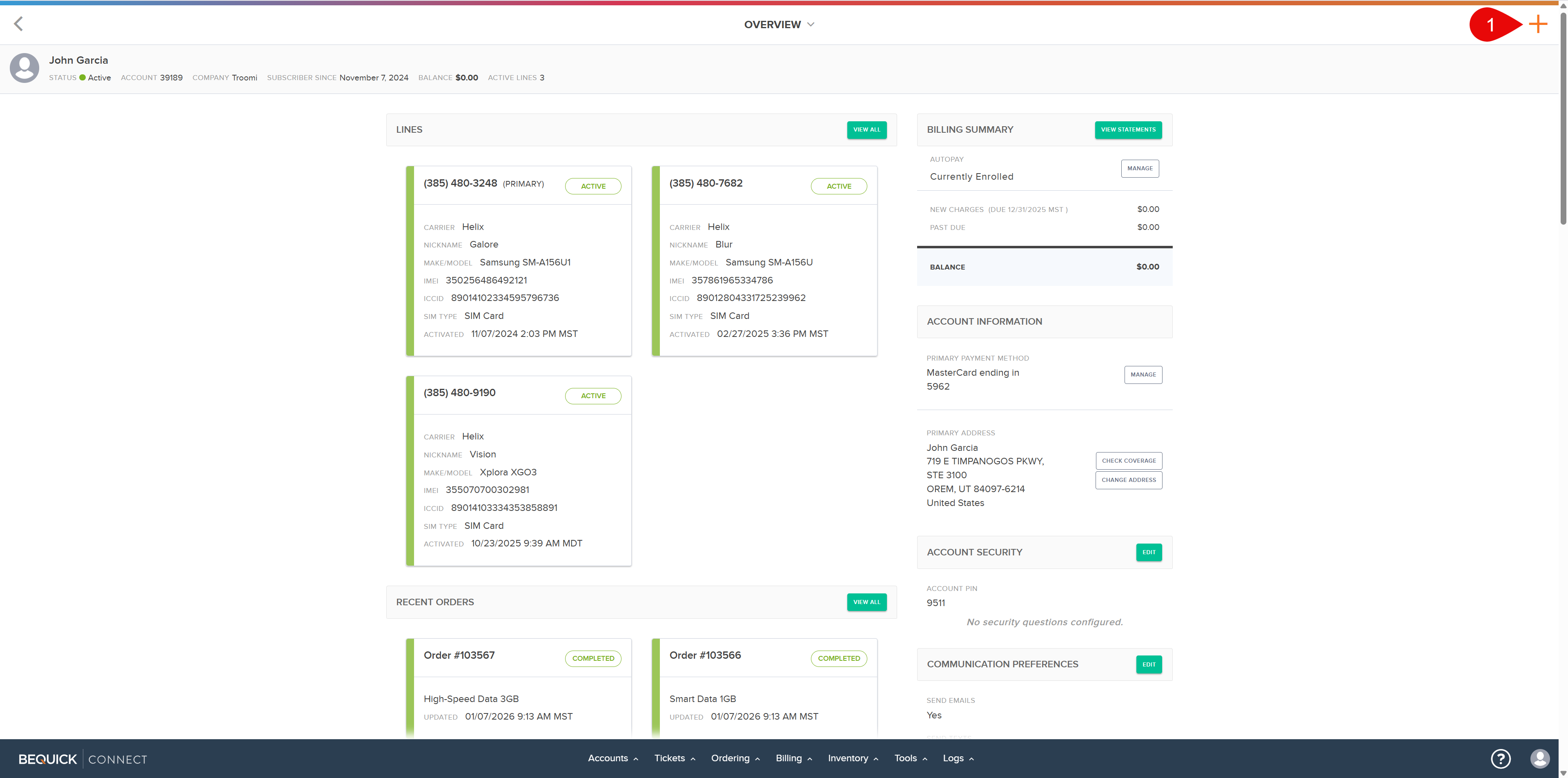
1) Open the customer’s Connect account and Click the "+" on the top right.
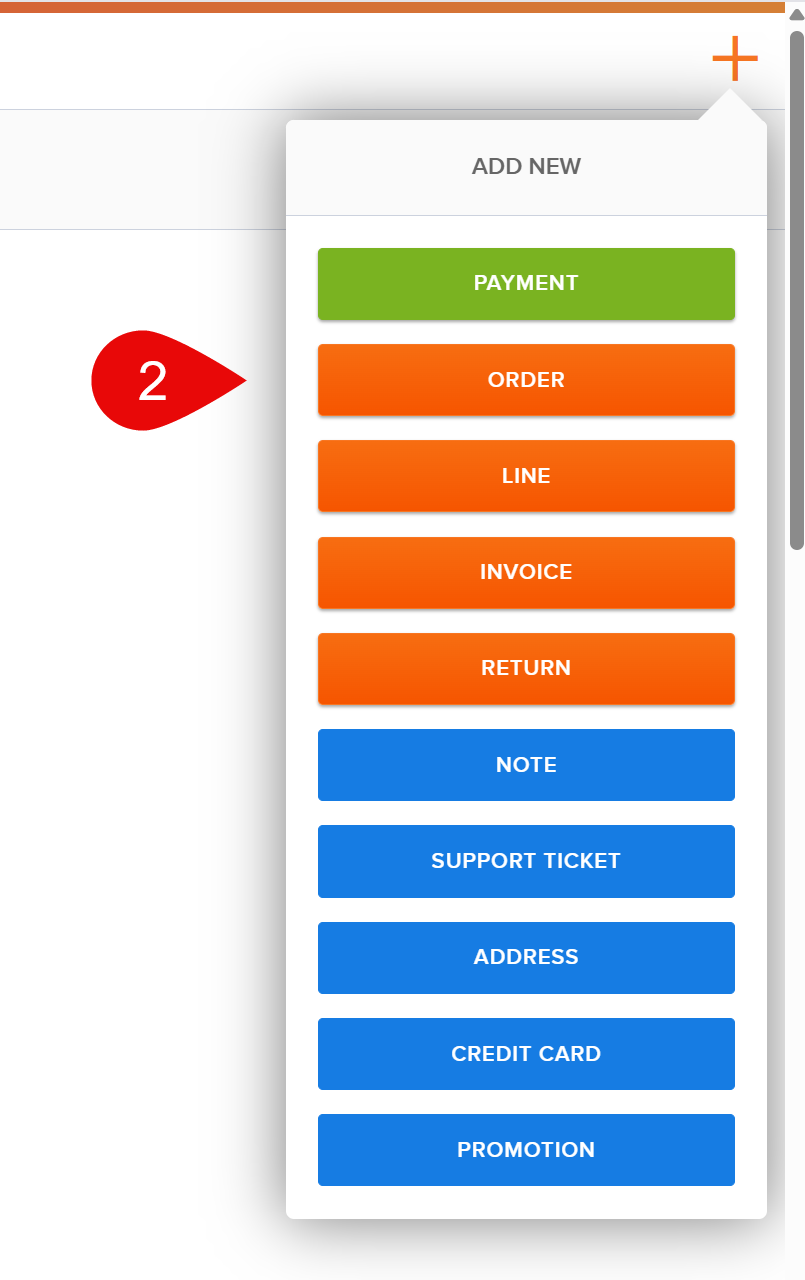
2) Click "Order"
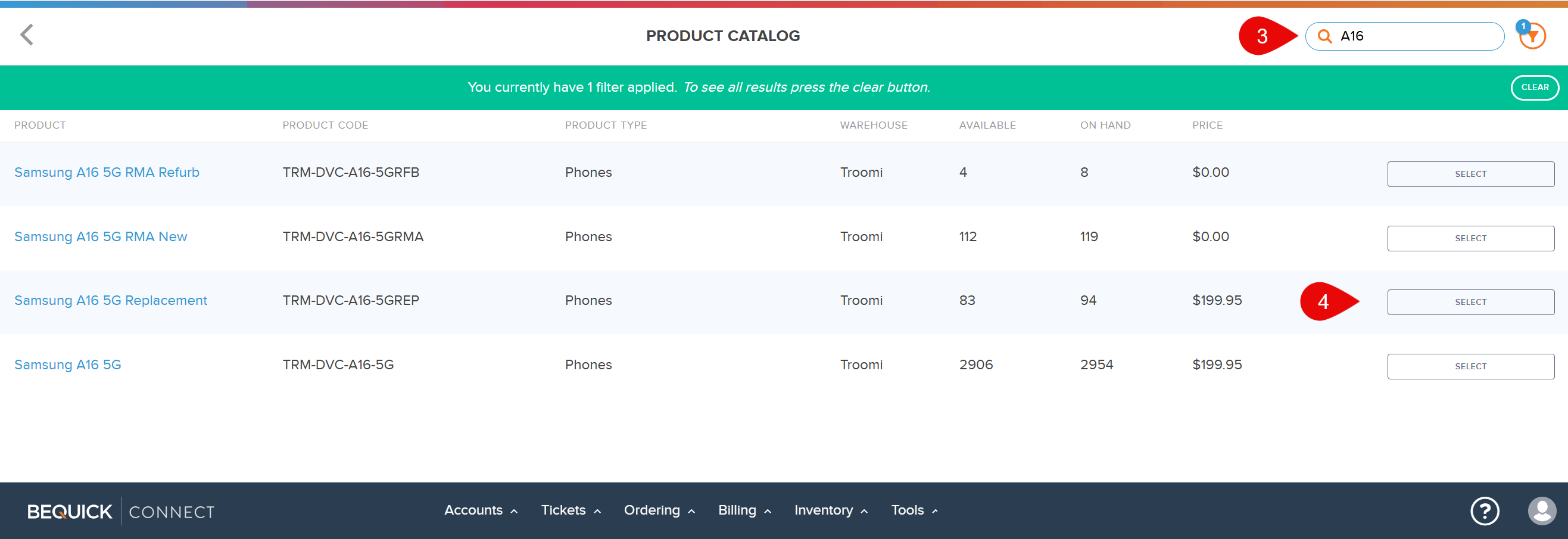
3) Search for the Samsung A16 5G Replacement
4) Select the Samsung A16 5G Replacement
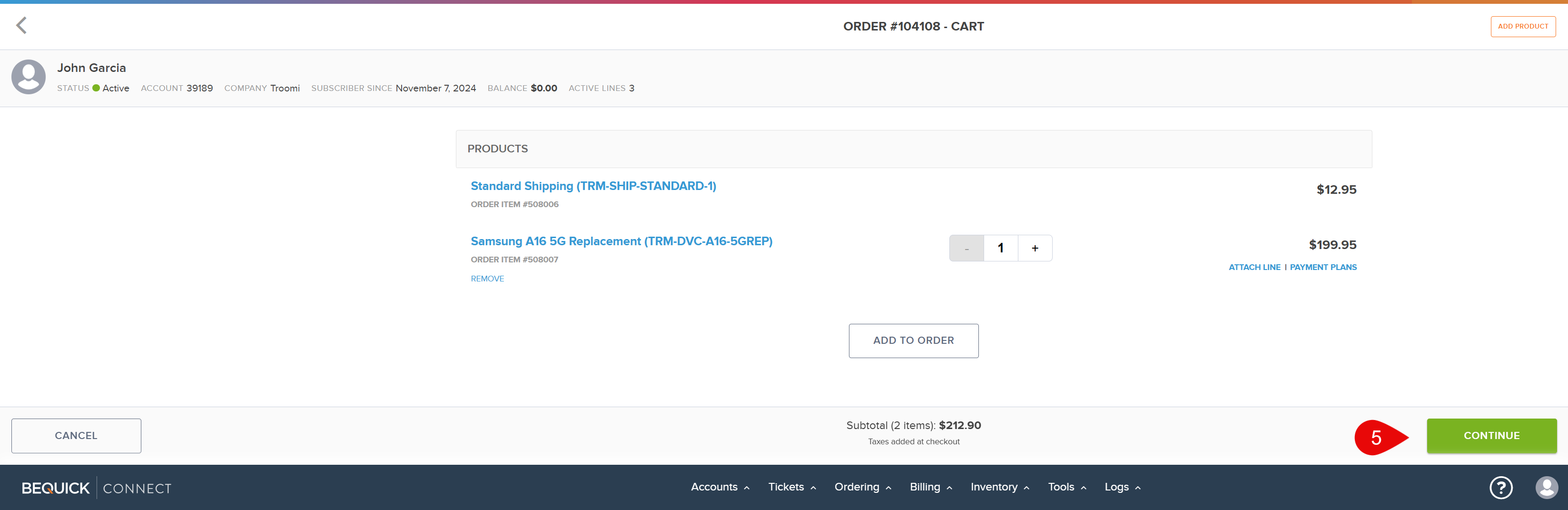
DO NOT ATTACH A LINE
5) Press Continue
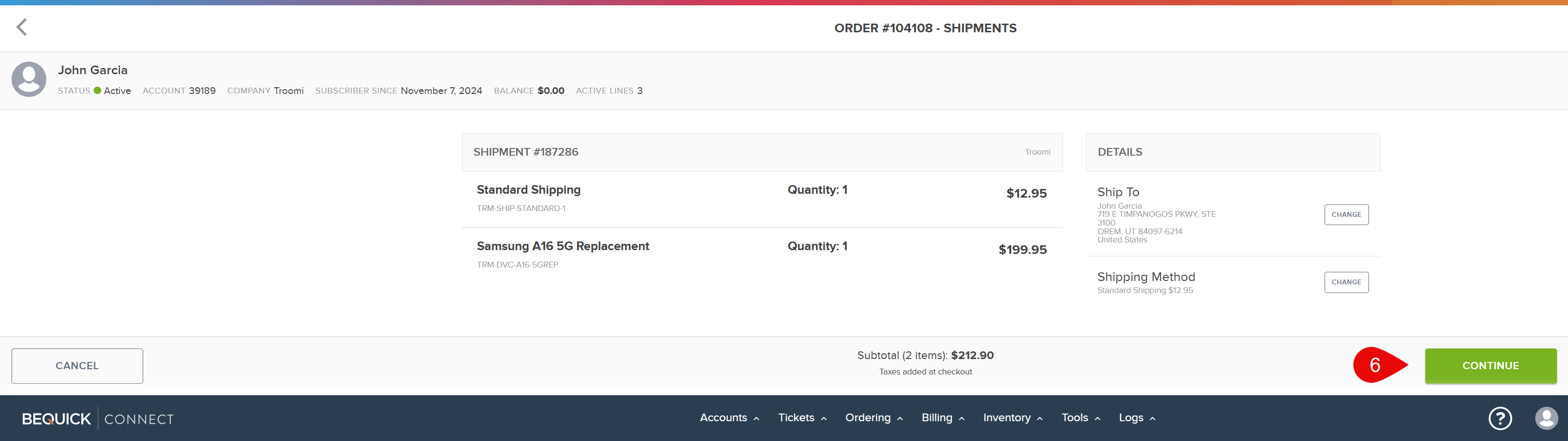
6) Press Continue
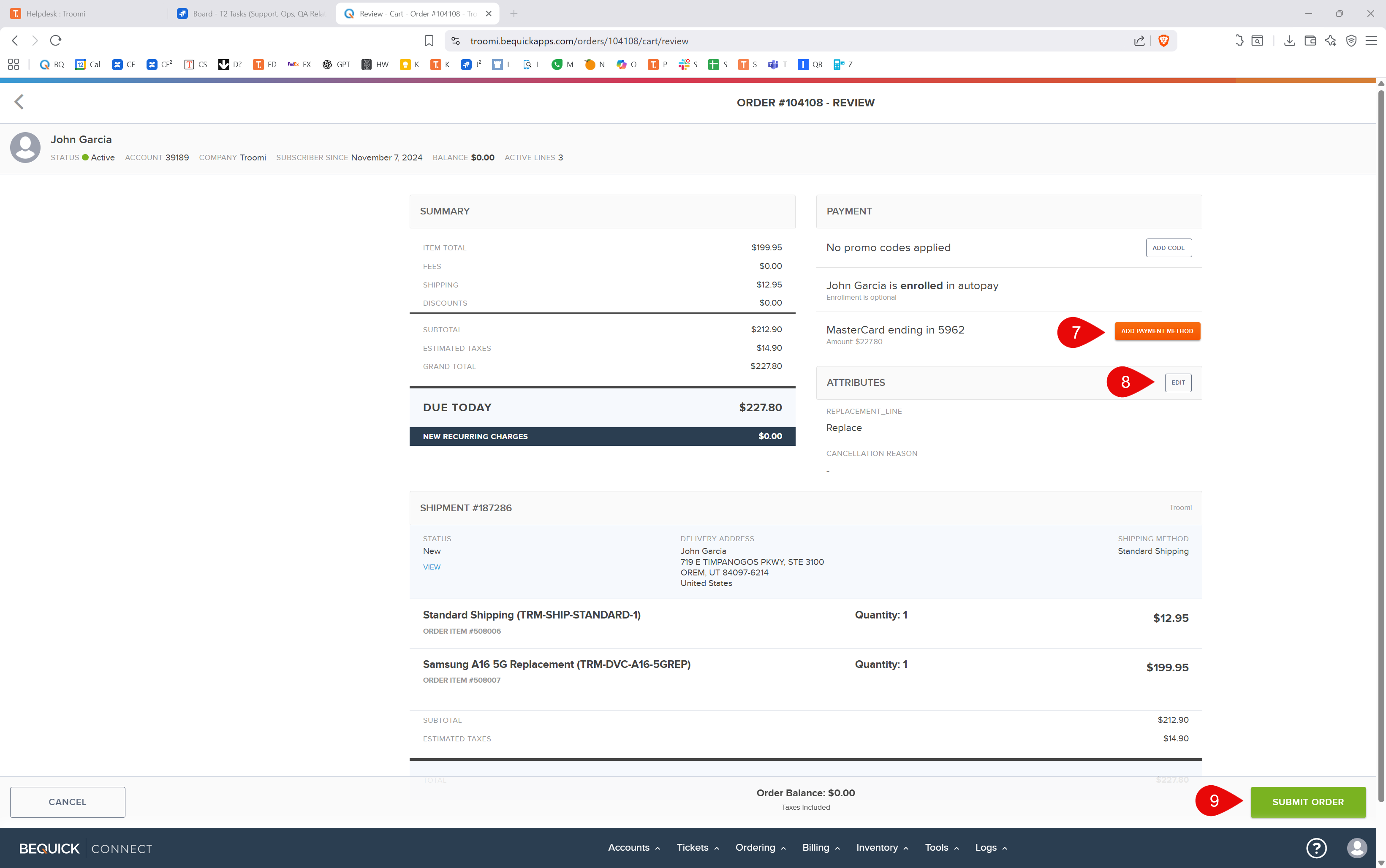
7) Add Payment Method
8) Add "Replacement" attribute
9) Submit Order
DO NOT MAKE A MERGEABLE DEVICE.
HPP: Service Change, IMEI & ICCID Change
When the customer receives the device, please get pictures from the customer of the following:
1. SIM Card Number: Picture of the physical SIM.
2. IMEI: This can be found and photographed in Settings > About Phone, next to IMEI (1).
3. UUID: This can be found and photographed inside the Troomi app, next to the Troomi ID.
Once that information is gathered, go find the watch line in HPP and submit an inquiry asking for the watch line to be changed to a 50 MB 512k phone plan.
At that time, provide HPP with the ICCID (SIM number) and the IMEI so they can swap the old information with the new information provided.
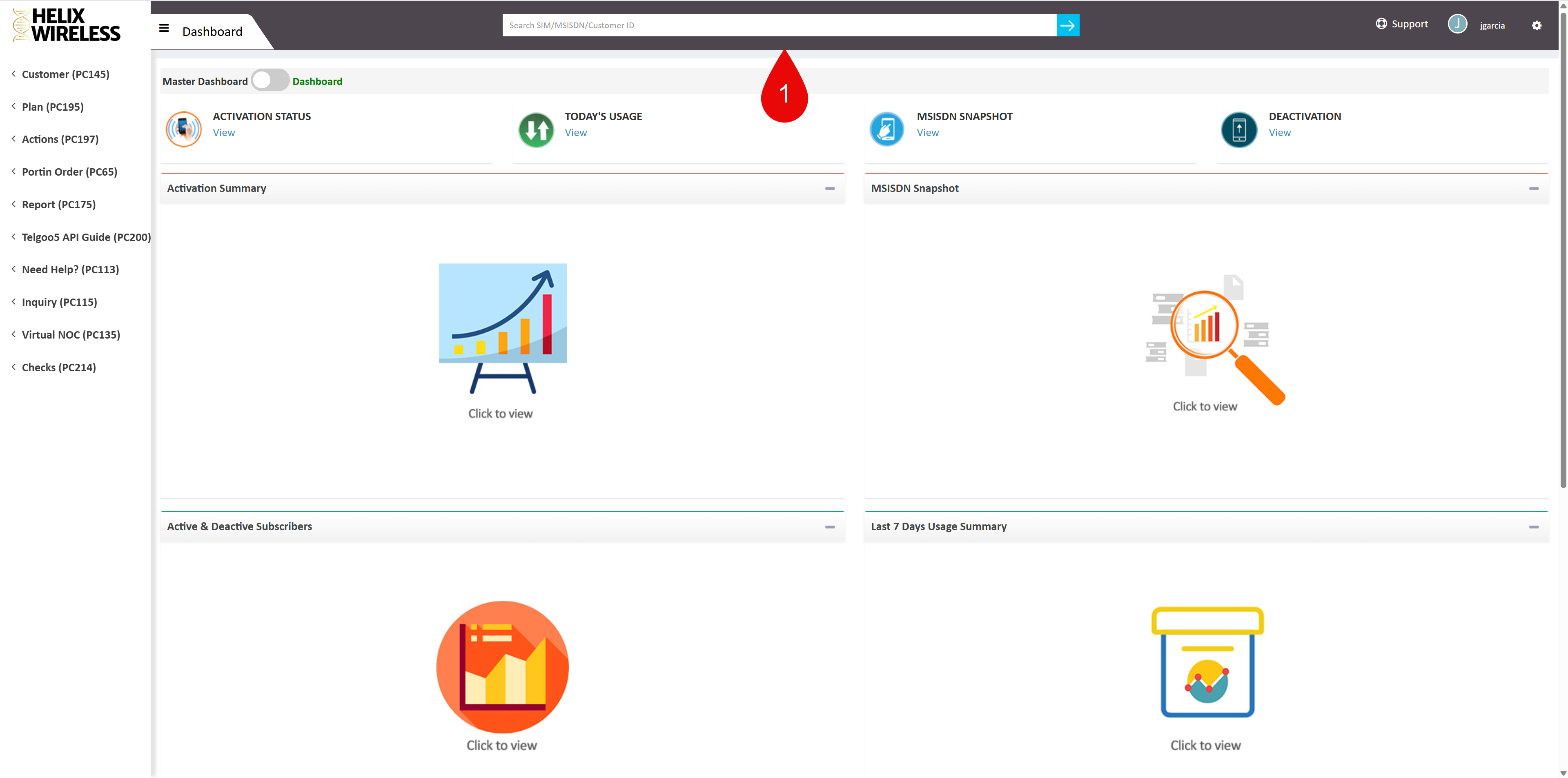
1) Search for the Watches Line
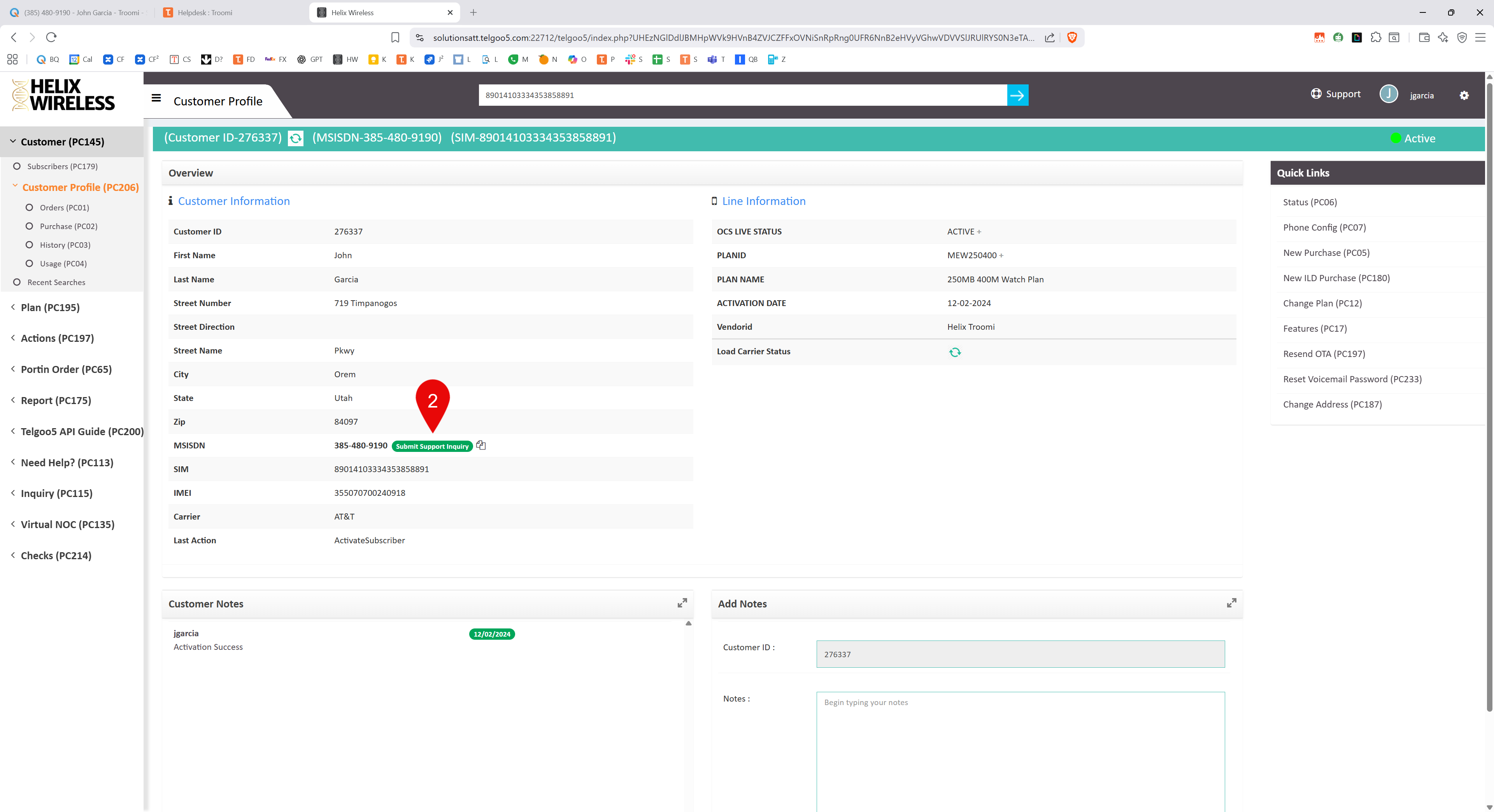
2) Submit a Support Inquiry: Fill in the required information and ask them to change the line to a phone plan. Provide the ICCID And IMEI From The Replacement Phone and request the 50 MB 512k phone plan.
Parent Portal: Create Device
Once the request has been completed by HPP, go to the customer’s parent portal and create a device. Make sure to ask the customer beforehand which plan they want and if they would like warranty coverage (highly recommended).
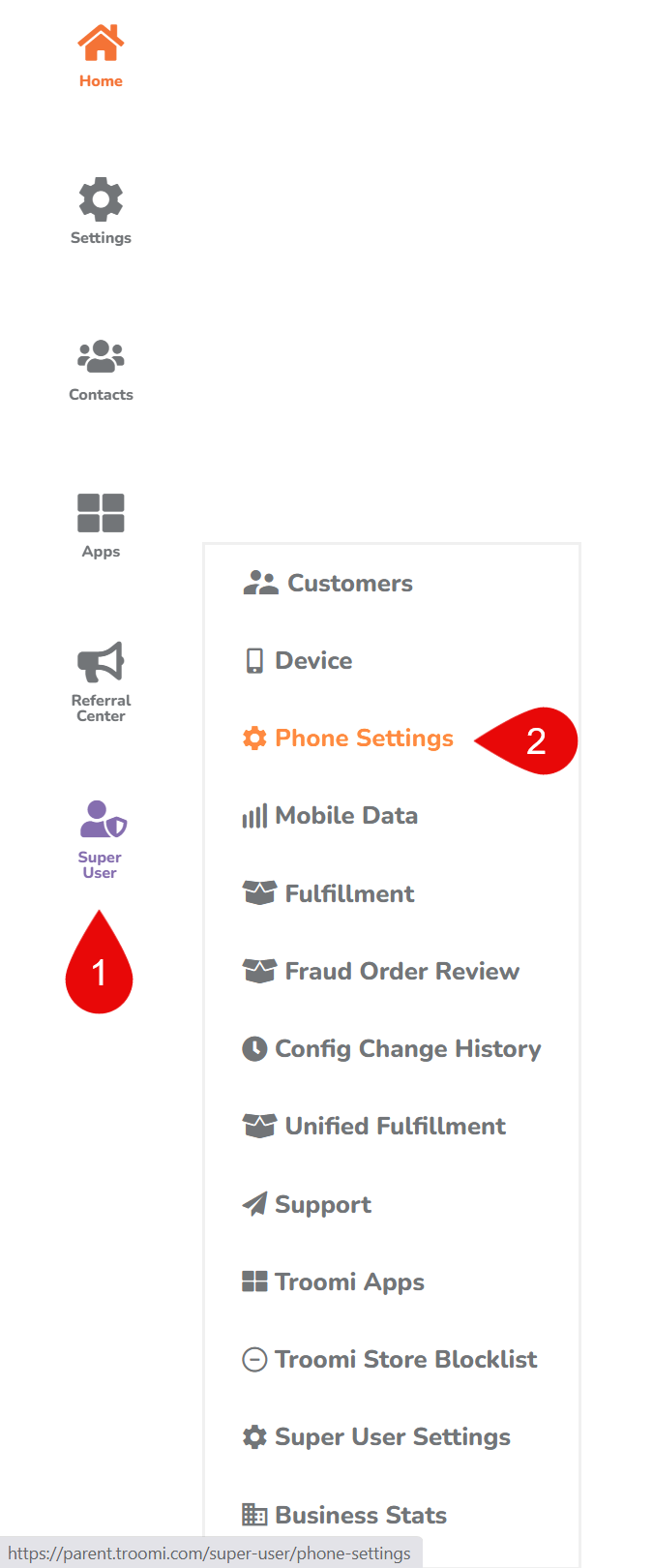
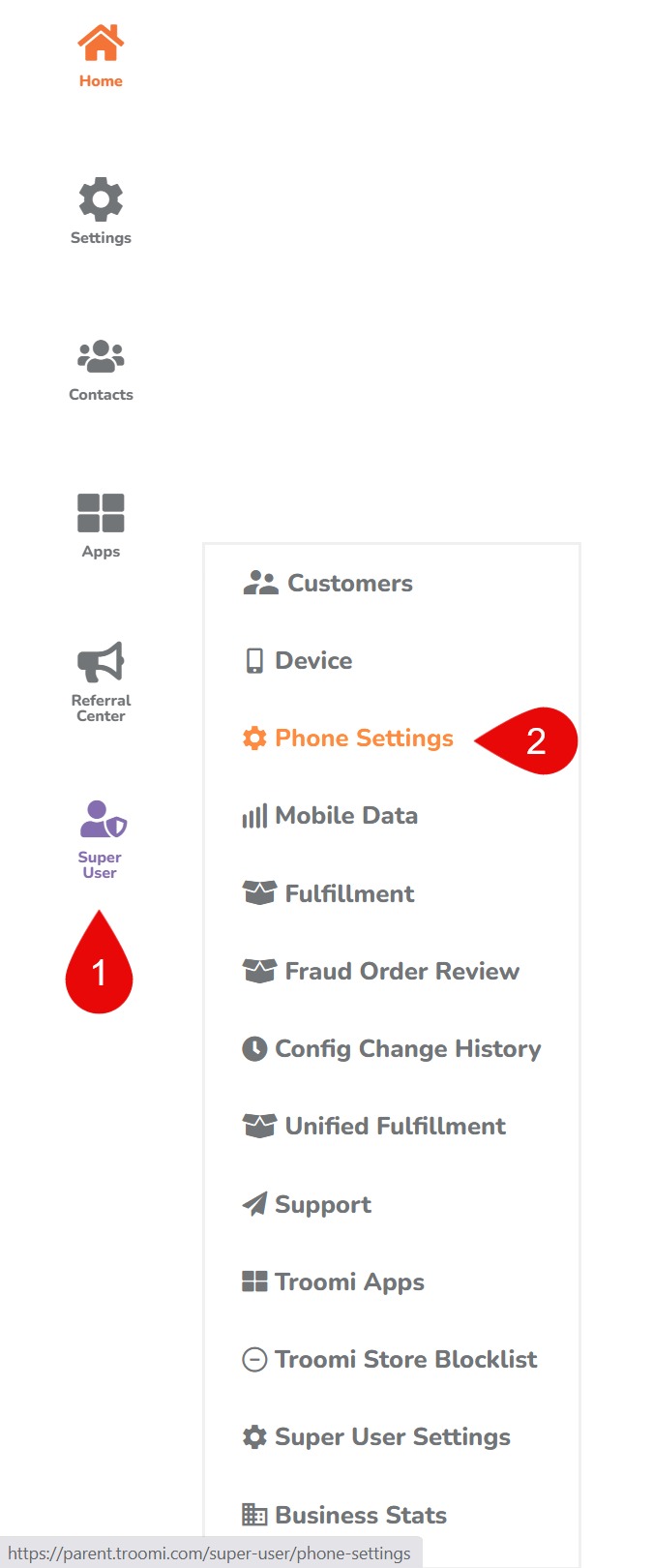
1) Click "Super User"
2) Click "Phone Settings"

3) Click "Create Device"
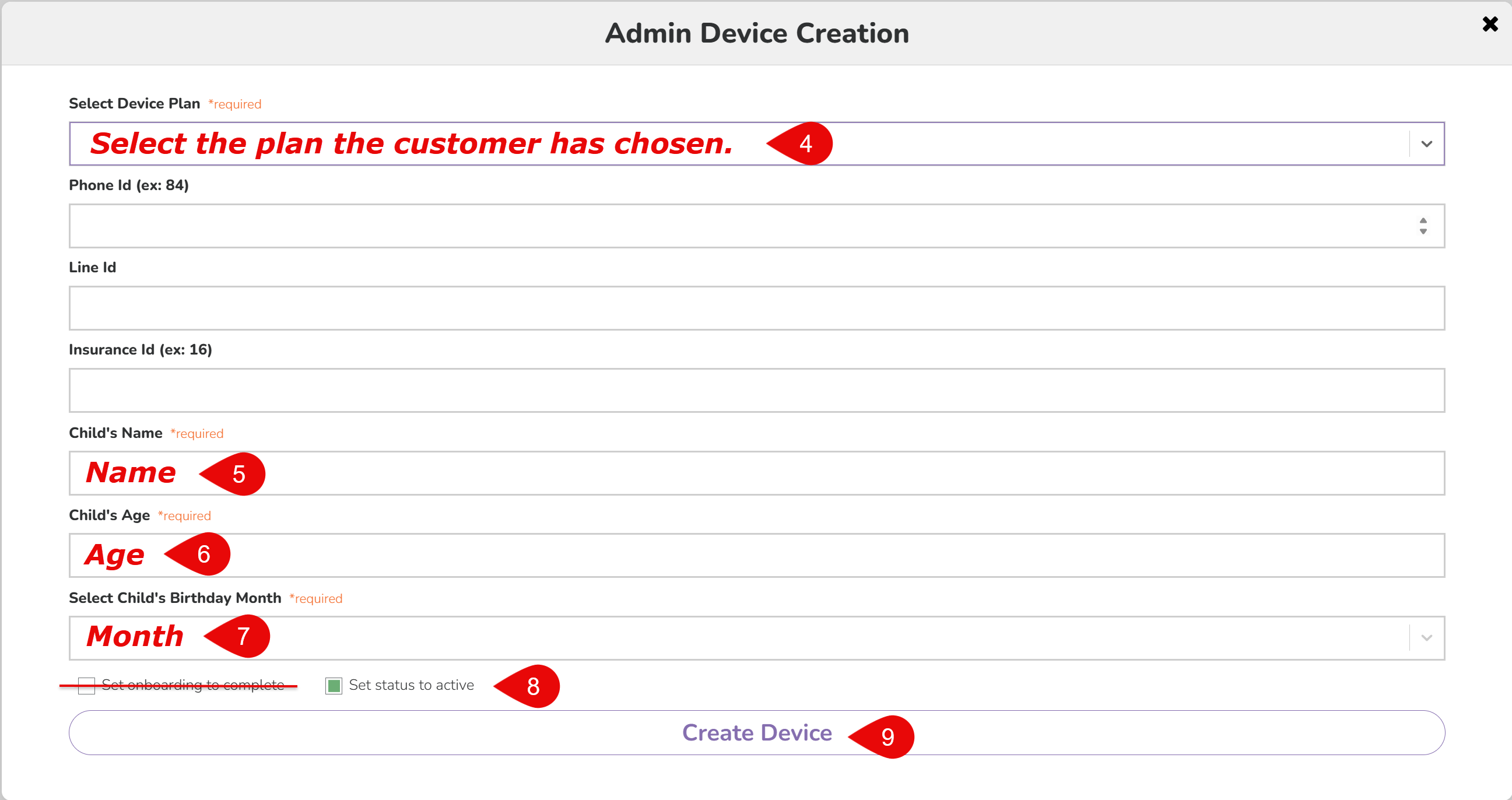
4-7) Select & Fill Required Fields
9) Select "Set status to active." DO NOT MARK THE ONBOARDING AS COMPLETE
8) Create Device
Connect: Line Editing
Update the line that used to be the watch line to a 50 MB 512k phone plan.
*Check if the nickname on the line is correct. If not, update it to the correct one.*
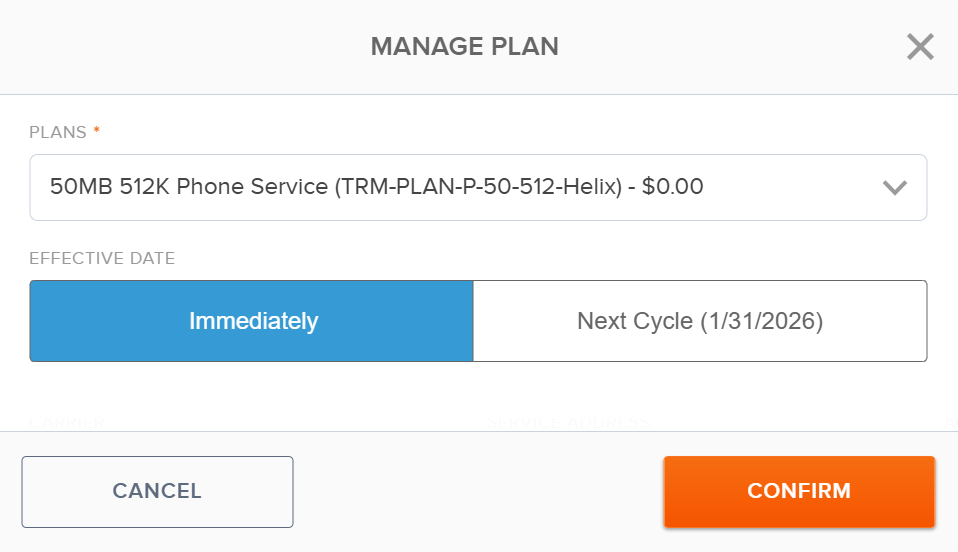
1) Press "Change" below the Watch Service
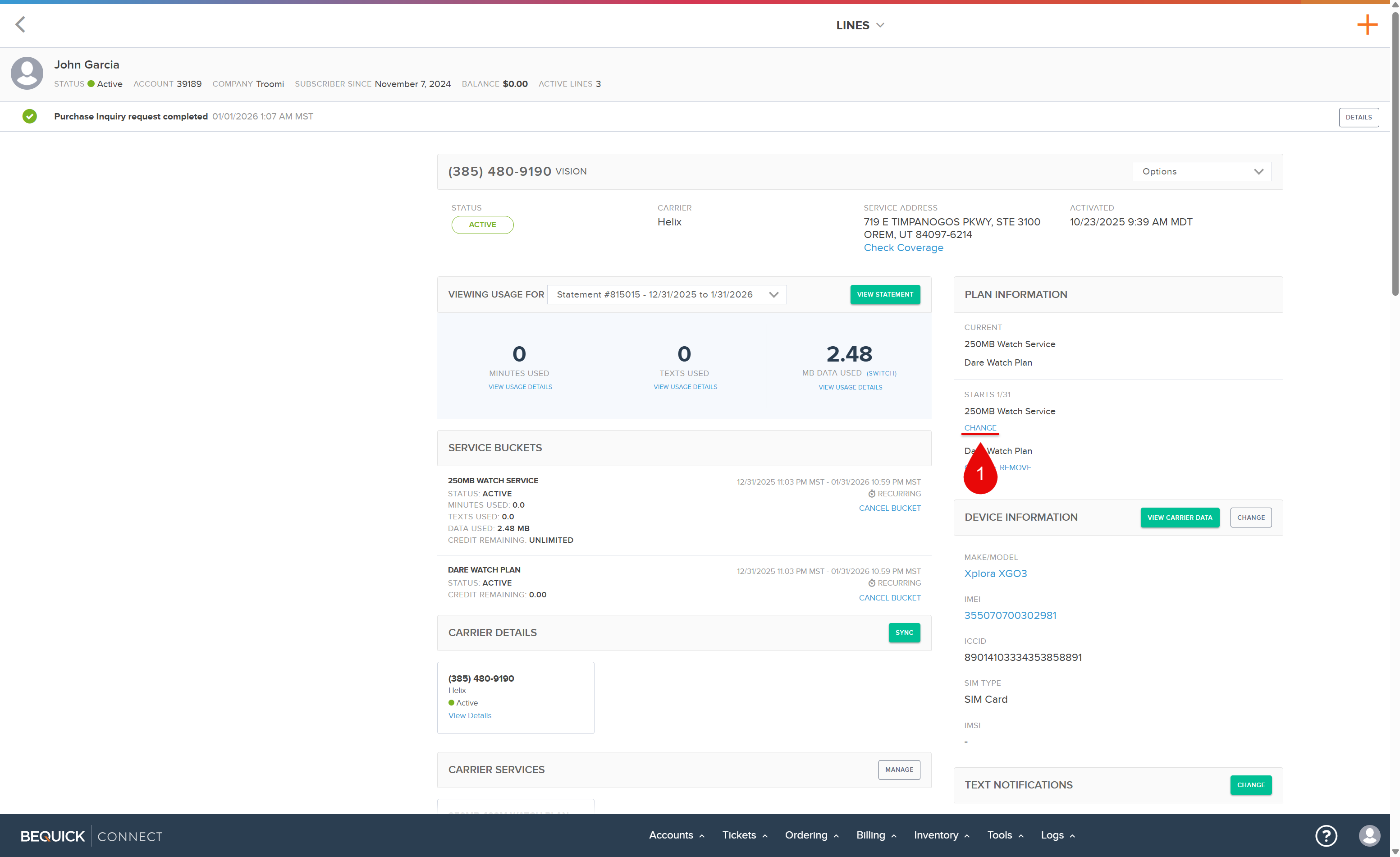
2) Under Plans, Select: 50 MB 512k phone plan.
3) Effective Data: Select: "Immediately".
4) Confirm
Back on the Line, remove the Watch Plan.
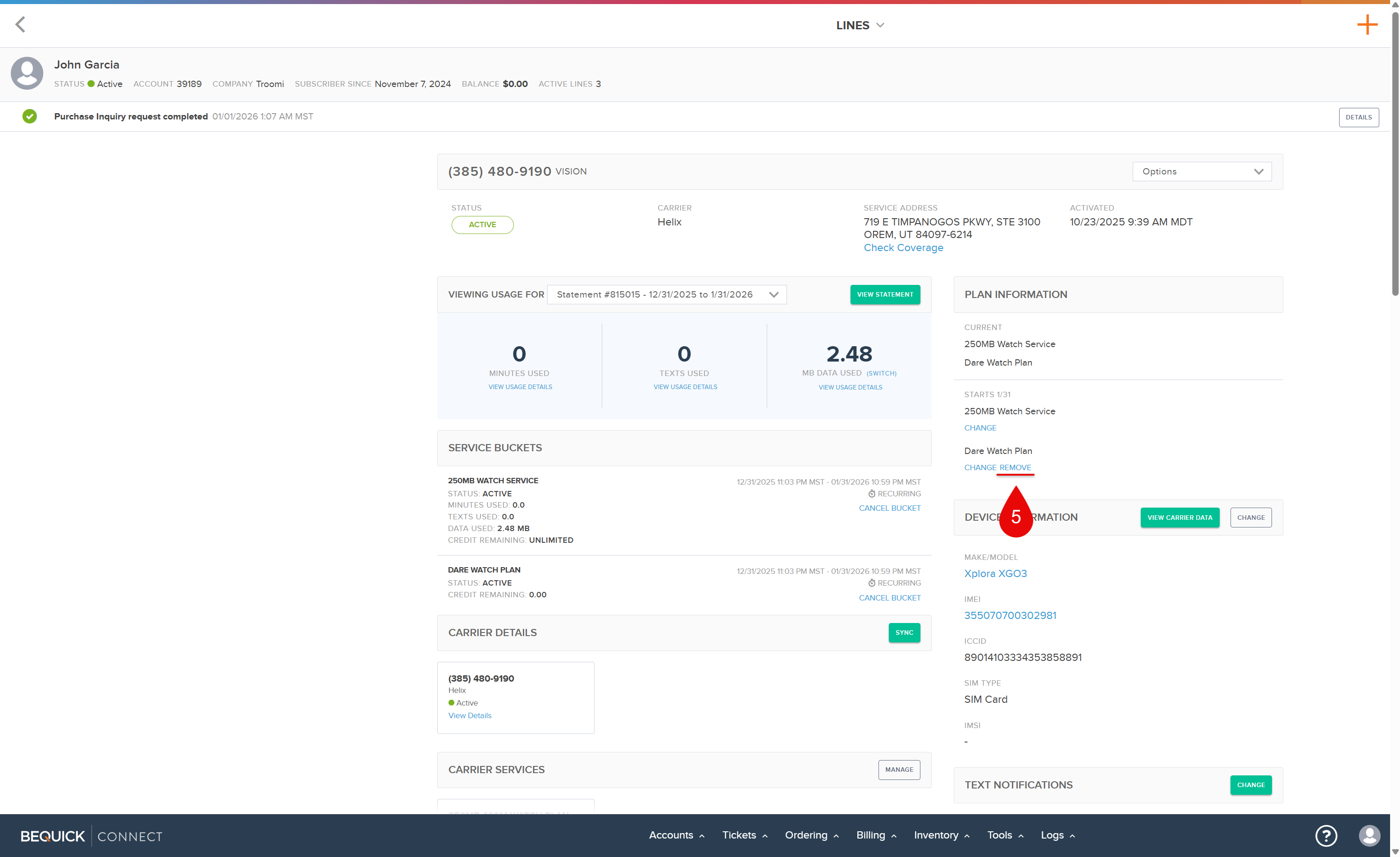
5) Press: "Remove".
This would be under the Watch Plan.
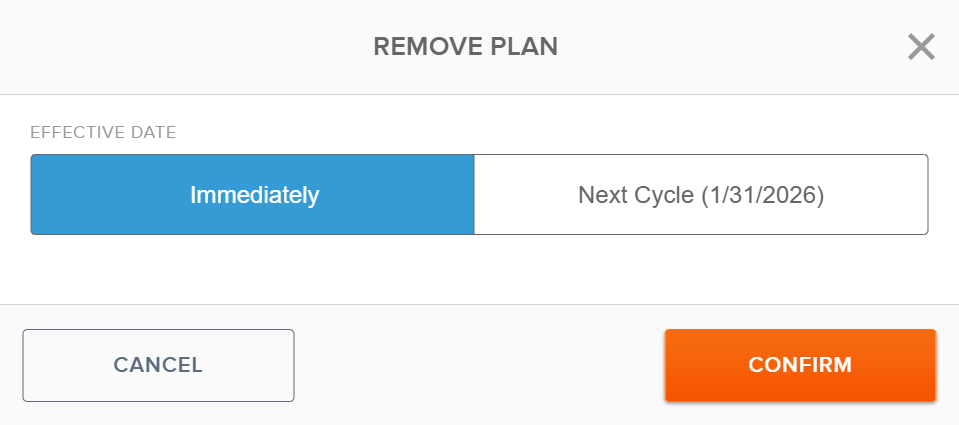
6) Effective Date: Select: "Immediately".
7) Confirm
Connect: Phone Plan Addition
For this section, you will need to verify with the customer the charge for the desired phone plan and confirm the card information on file before ordering the plan through Connect.
1) Open the customer’s Connect account and Click the "+" on the top right.
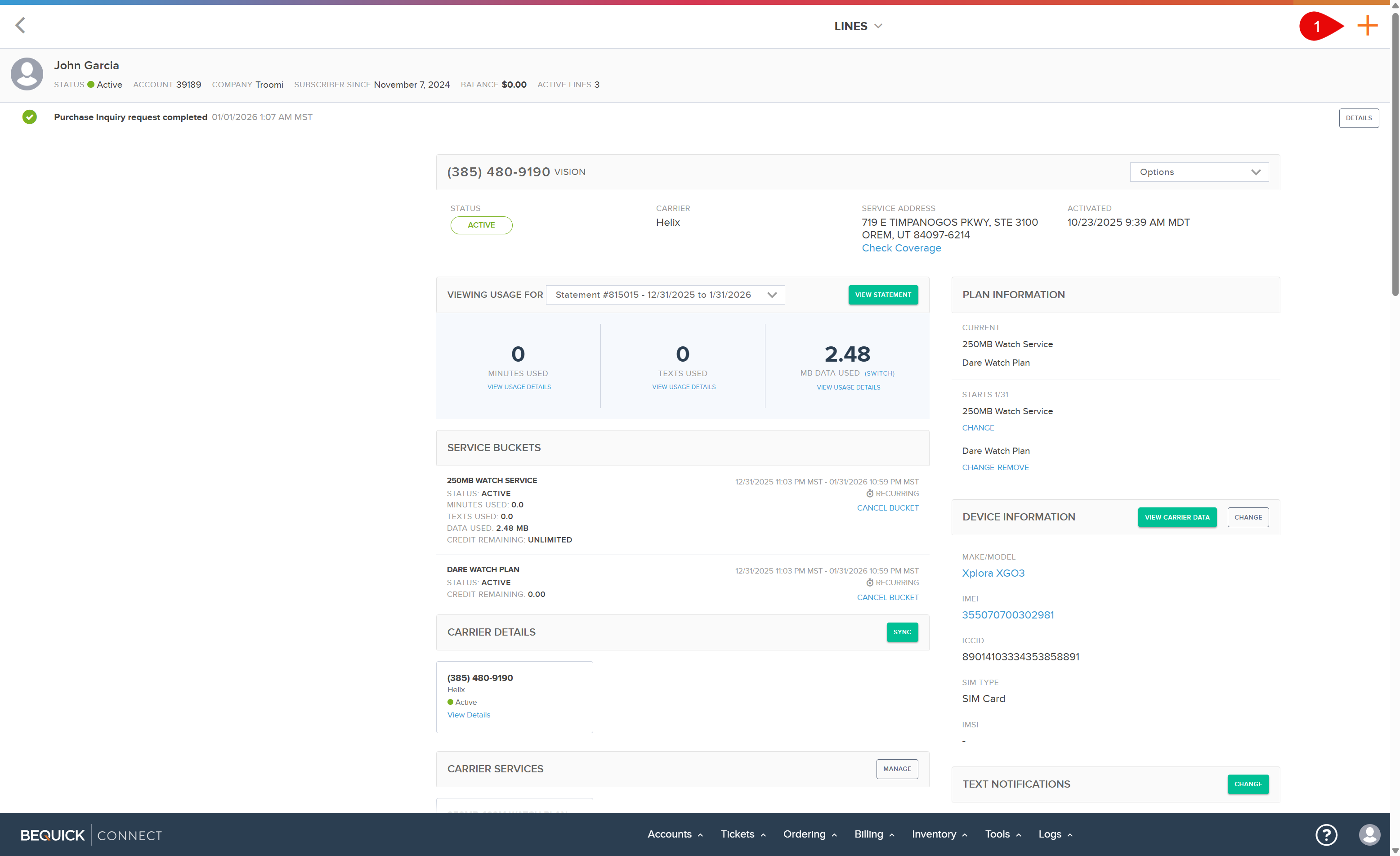
2) Click "Order"
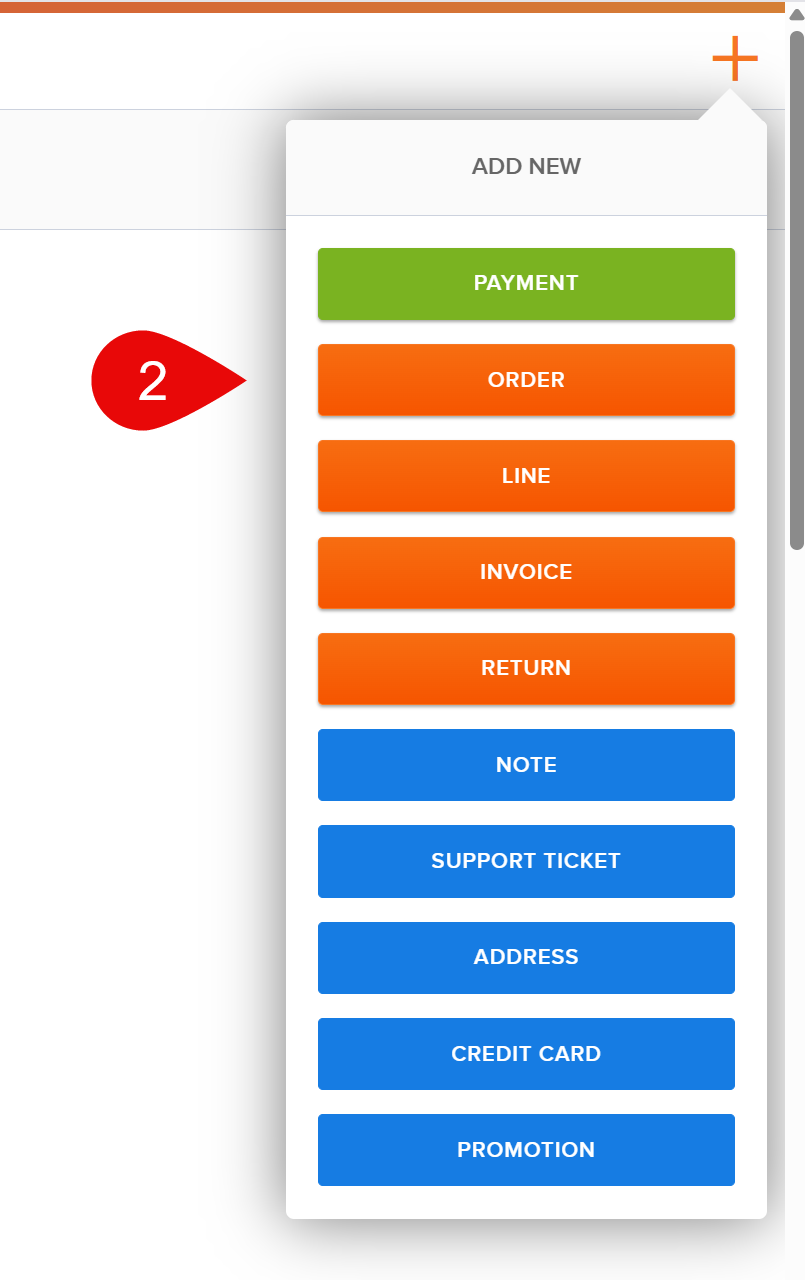
3) Search for & Select the Phone Plan
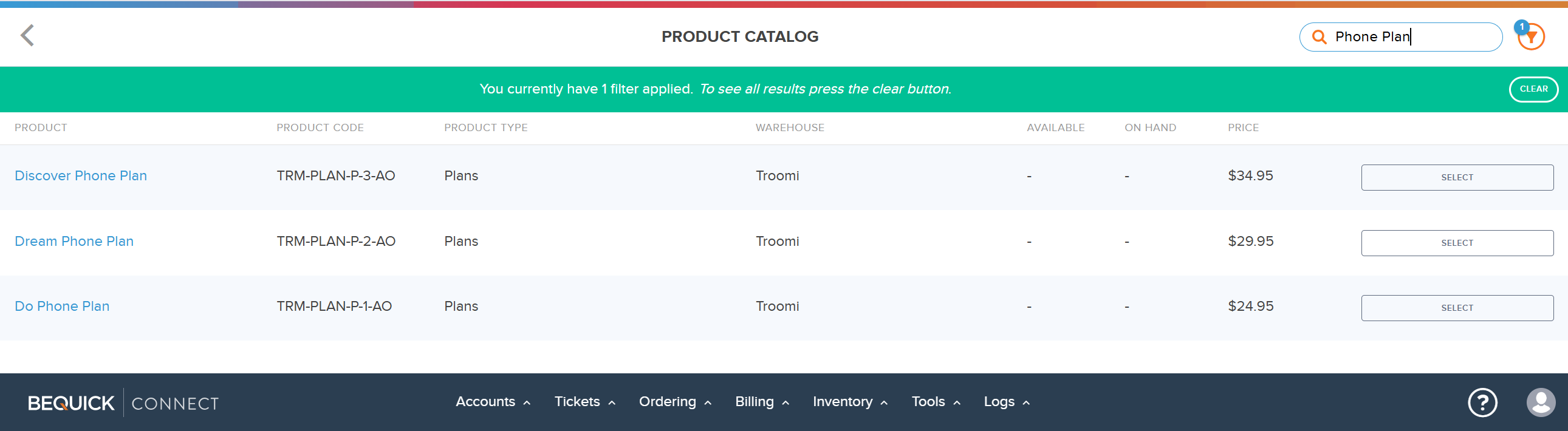
4) Press Continue
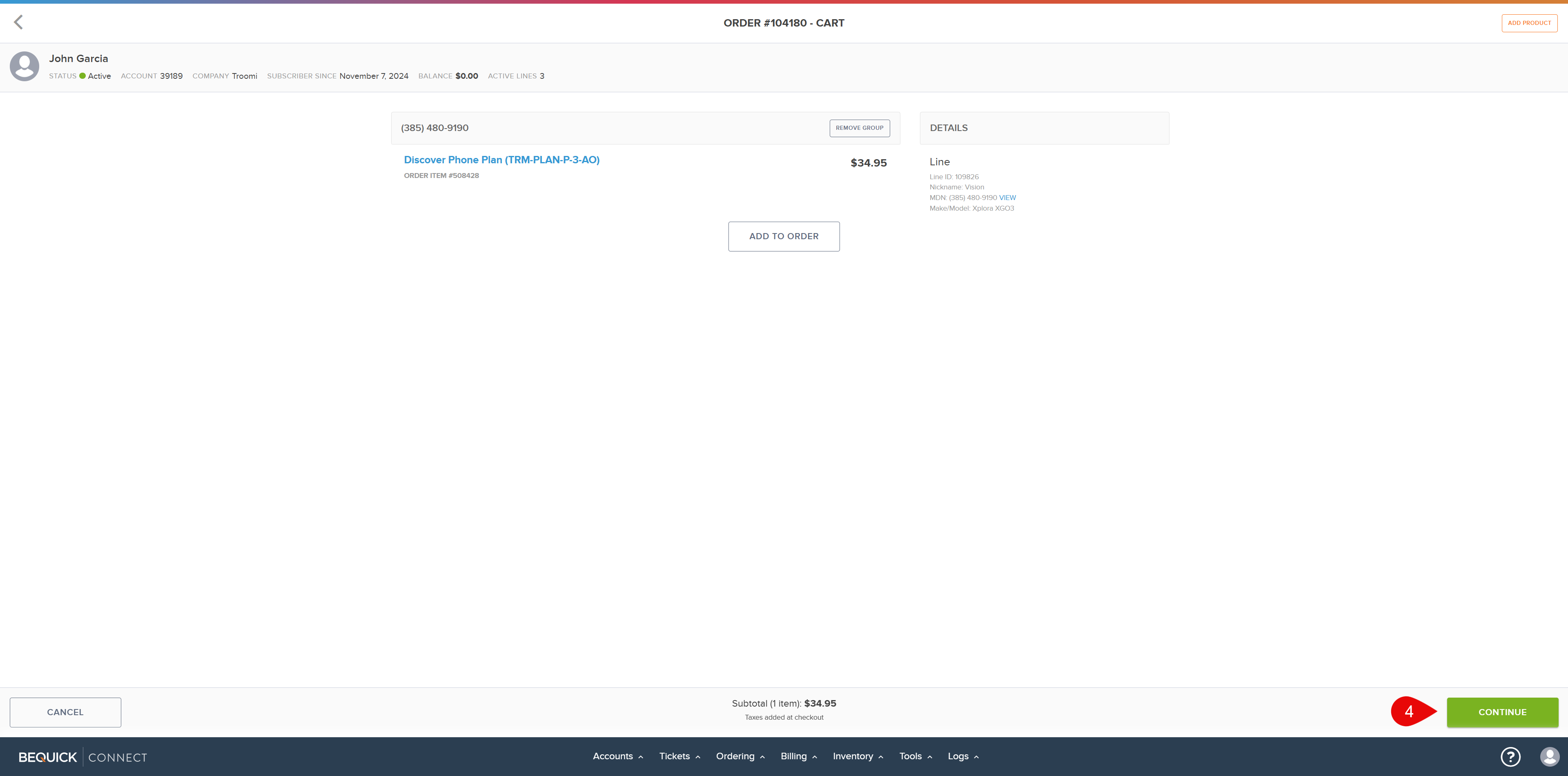
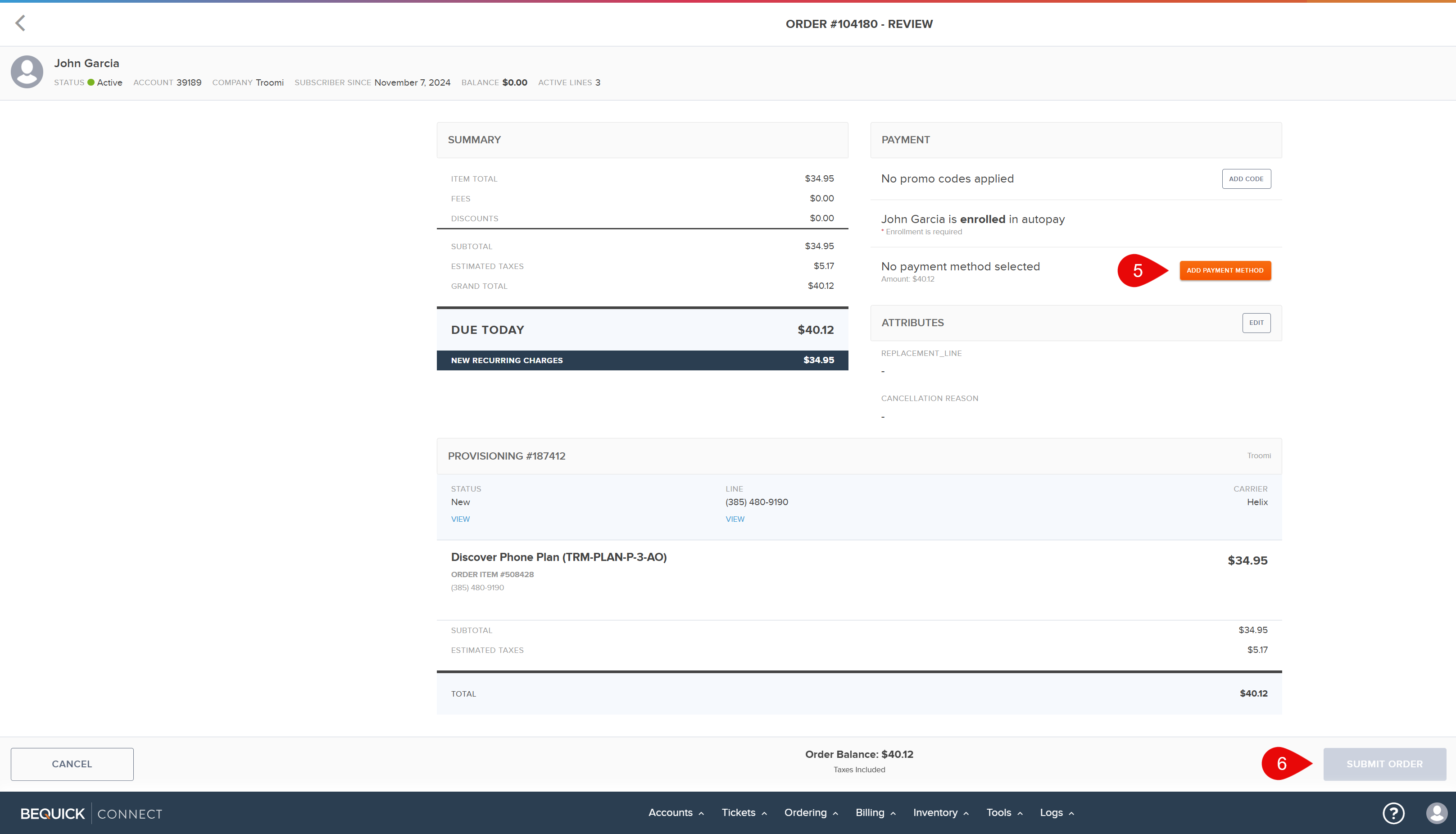
5) Select Payment Method
6) Submit Order
Parent Portal: Line ID
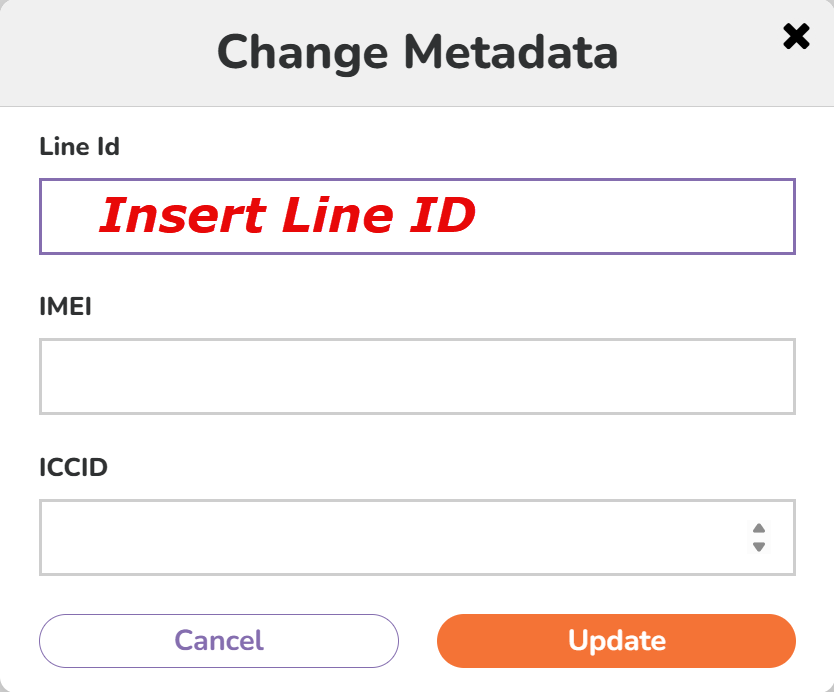
Go back to the portal, select the device’s profile, click Super User, then Phone Settings, select Edit Metadata, and add a line ID.
1) Click "Super User"
2) Click "Phone Settings"
3) Click "Edit Metadata"

4) Insert Line ID
5) Press Update